
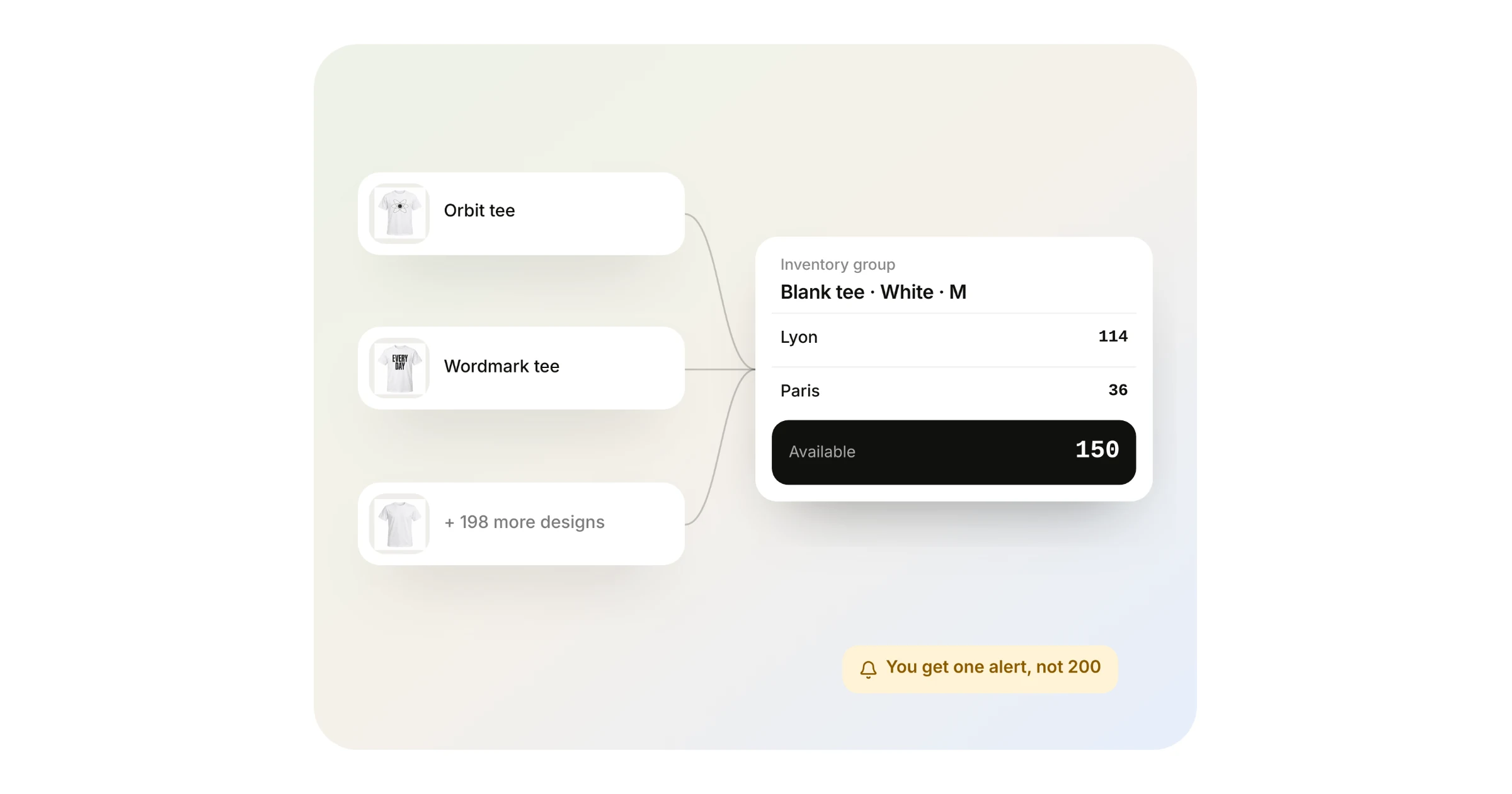
A print-on-demand store might list two hundred T-shirt designs. On the shelf there is one stack of blank white tees in medium. Whatever design a shopper picks, the order ships from that stack.
If every design keeps its own stock count, the counts drift away from the shelf. Sell the Orbit tee and the Wordmark tee at the same moment and both can claim the last blank. Restock the blanks and you have two hundred numbers to update.
Inventory groups fix this by counting the thing you actually hold.
What an inventory group is
An inventory group is the physical item: "Blank tee · White · M", with its own SKU. Products and variants that ship as that item point at the group instead of keeping their own count. From then on there is one number, and every linked design sells from it.
Setting one up
- In Store Admin, go to Inventory › Inventory Groups and add a group with a name and SKU.
- Open the group and enter its stock at each location that holds the item. A location without stock reads as zero; there is nothing to assign first.
- On each product or variant that ships as the item, open its inventory section, choose Inventory group as the inventory source and select the group.
To take a product back out, choose another inventory source on the same product. The group keeps its history.
What happens when something sells
When a shopper buys any linked design, the order holds stock on the group, so every design shows one fewer at once. When the order ships, the group's quantity drops and its stock history records the movement with the order as its reference.
Because there is only one number, two designs can never sell the same last shirt.
The group shows the pool the way your warehouse sees it: on hand, held and available at every location, and the products and variants that sell from it.
You get one alert, not two hundred
Set an overall low-stock threshold on the group, and one per location if you like. When the blanks run low you get one alert for the group, instead of one for every design. Alerts let you know; they don't stop sales.
At scale
A store can have up to 10,000 inventory groups. Groups work with the rest of inventory:
- Bulk files: create and update groups from a CSV, and set their stock with the stock-levels file using the group's SKU. Every file is previewed before anything changes.
- Transfers: move a group's stock between locations like any product's.
- Store API and webhooks: read and manage groups and their stock from the Store API, with webhooks for new, changed and deleted groups and every stock change.
When to use one, and when not to
Use an inventory group whenever two or more listings ship as the same physical item:
- designs printed on the same blank;
- the same item listed twice, such as the shop listing and a gift edition;
- made-to-order pieces that come from one batch of material.
If a product is its own physical item with its own stock, keep it on its own count; that is simpler.
Read more on the Inventory groups page, or in the Help Center: About inventory groups and Shared stock for print on demand and blanks.